• Void Payment
• Refund Payment
How To Void A Payment
- Start by clicking Starting & Ending Date boxes to select your date range then click Search to view transactions.

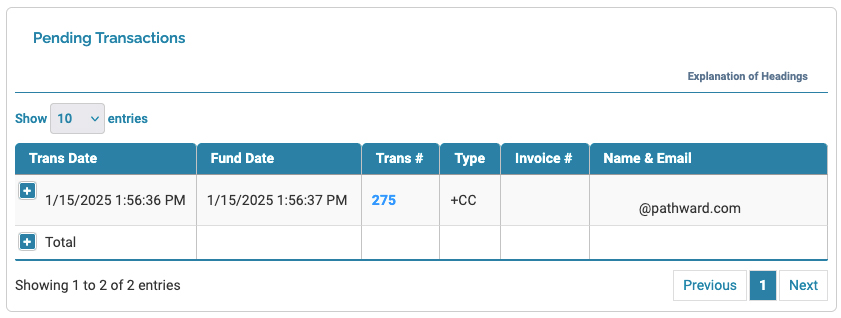
- Scroll down to Pending Transactions to locate the transaction you would like to void. Click the Trans # with the blue color (ex. 275 image below) to view the Transaction Details.
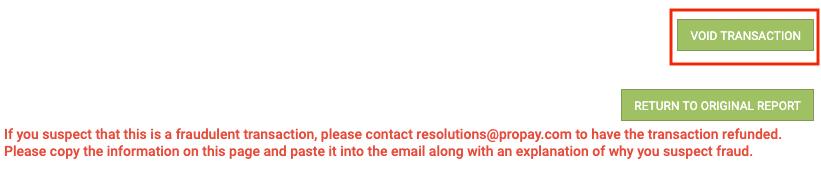
- Proceed to scroll to the bottom to view the Void button (button with red box around), then click to Void Transaction.
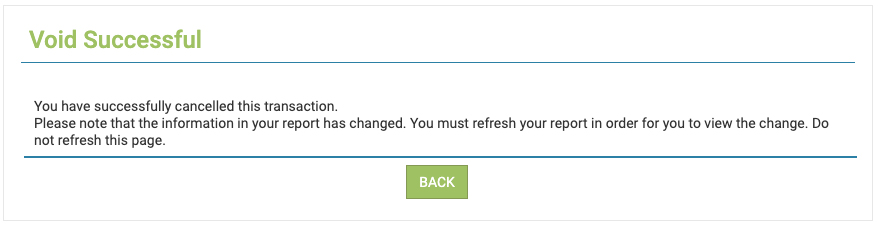
- Finally, the Refund Successful screen will display.
How To Refund A Payment
- Start by clicking Starting & Ending Date boxes to select your date range then click Search to view transactions.
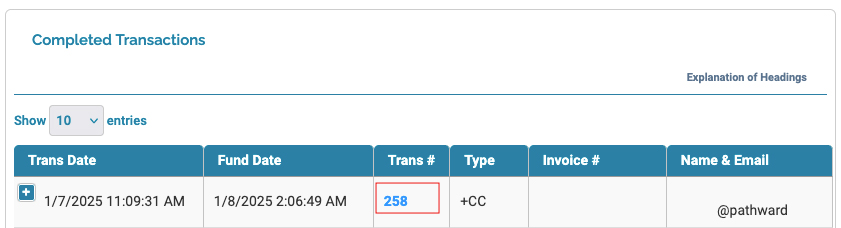
- Scroll down to Completed Transactions and click the Trans # (ex. 258 image below) to view Transaction Details.
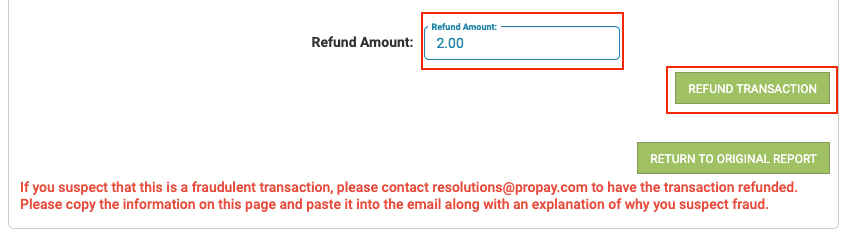
- On Transaction Details scroll to the bottom. Enter the Refund Amount followed by clicking on the Refund Transaction button.
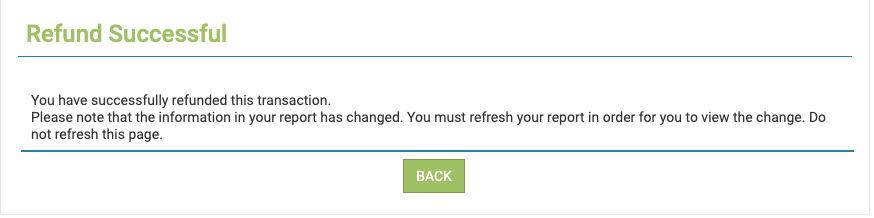
- Next, if successful you will see the following message:
• Submit an invoice
• Download/Edit Invoice
How to Submit An Invoice
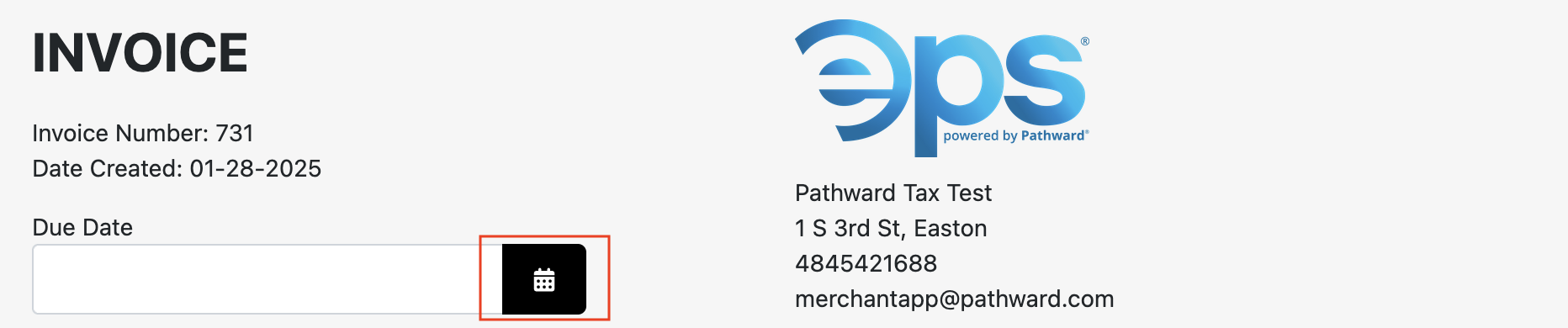
- Start by setting up the Due Date for payment on the invoice.
- Click Select Payer drop down in the Customer field. Select an existing customer (these are customers who have previously made a payment and are in Customers section) or select Add new customer to enter data directly into form.

- If selection is Add new customer proceed to enter the Customer Name and Email. If selection was existing customer proceed to next step.

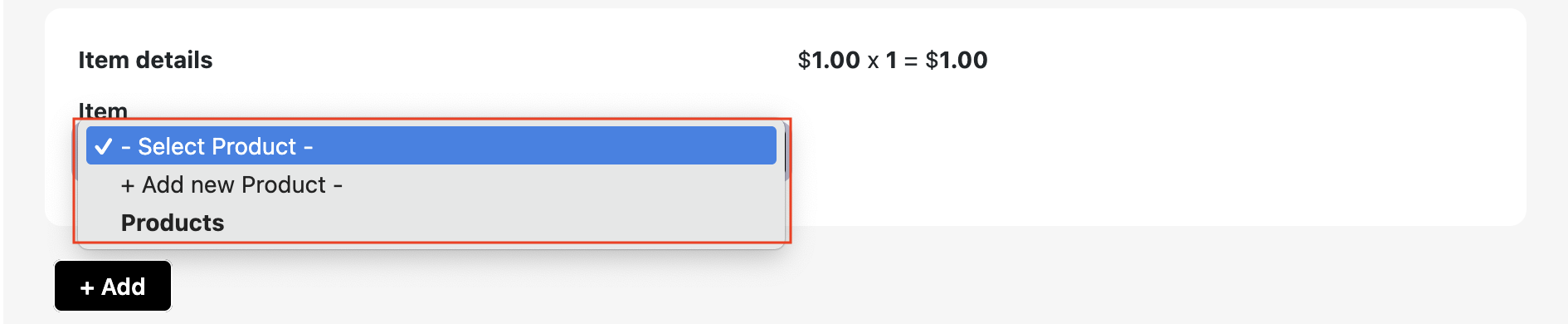
- Click Select Product drop down in the Item field. Click existing product if any have been added to the Product Catalog or select Add New Product to proceed to enter data directly into form.
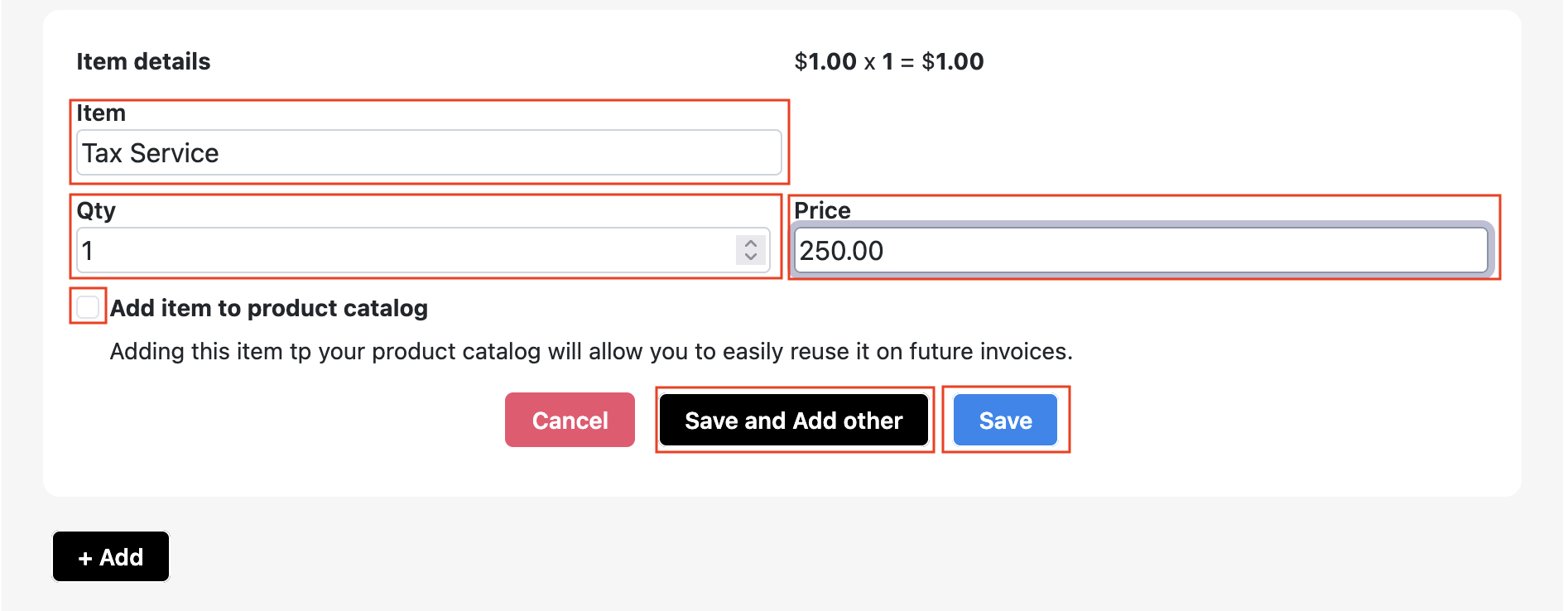
- Enter Item name of product/service, Qty by click the up and down arrows, Price of item, to add the product to Product Catalog you can click box for Add item to product catalog. Next, click Save and Add Other if additional items need to be added, else click Save to complete adding product(s)/service(s).
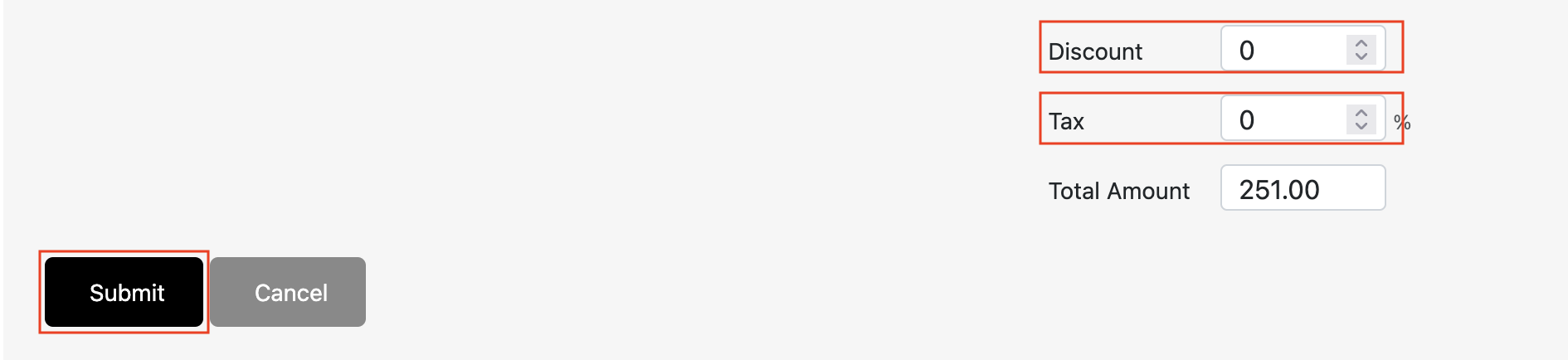
- Finally enter Discount (dollar amount) if any, Tax (percent ex. 8.25). Click Submit to send invoice.
How To Download PDF
- To Download Invoice to send via external email client. Click on the Name of the customer to open the invoice sent.

- A separate browser screen will open with the PDF. On the top right click the Folder Icon to download the PDF.
Note: Other icons in the header section include a Printer Icon that allows you to print the PDF if needed.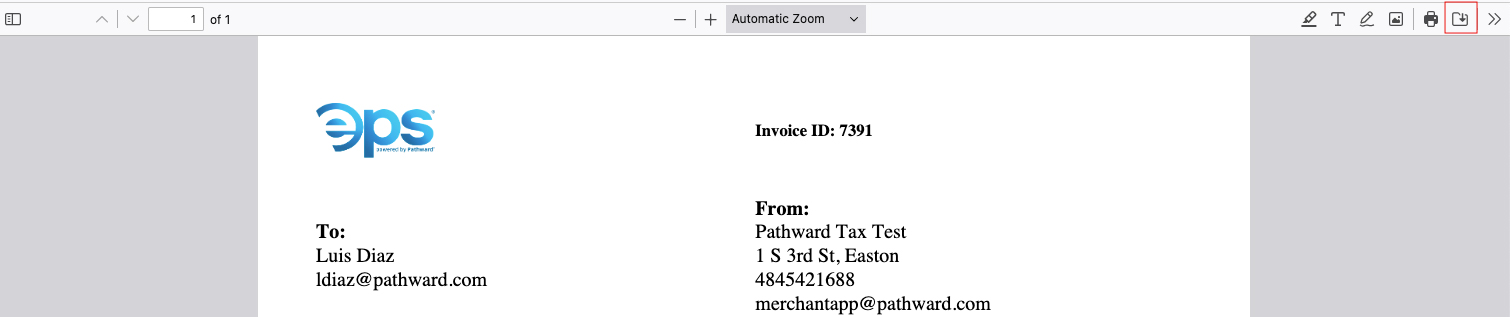
-
Click My Profile in main menu, scroll down to Company Logo.

-
Click Browse button under Company Logo navigate logo stored location on the
computer and select logo.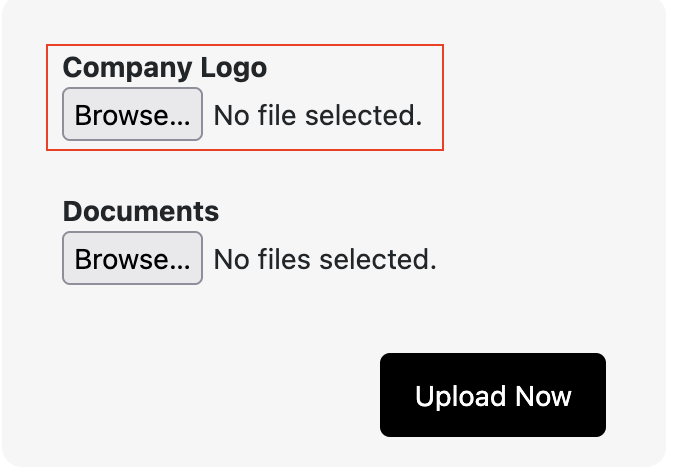
-
Click Upload Now to complete the process.
Note: The logo will be resized based on 175px width.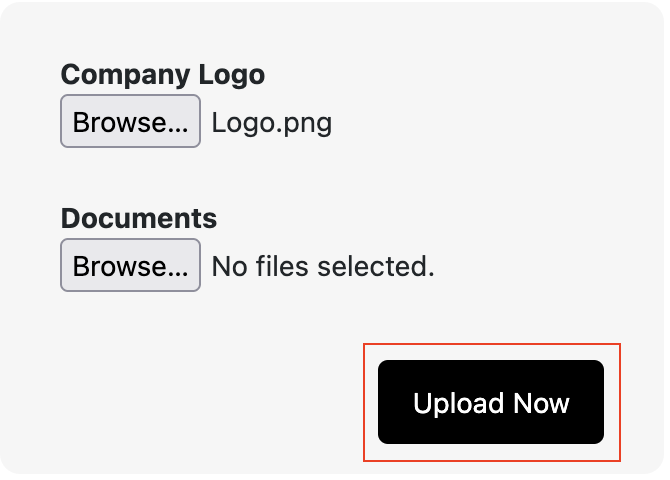
- Click Invoices in main menu.

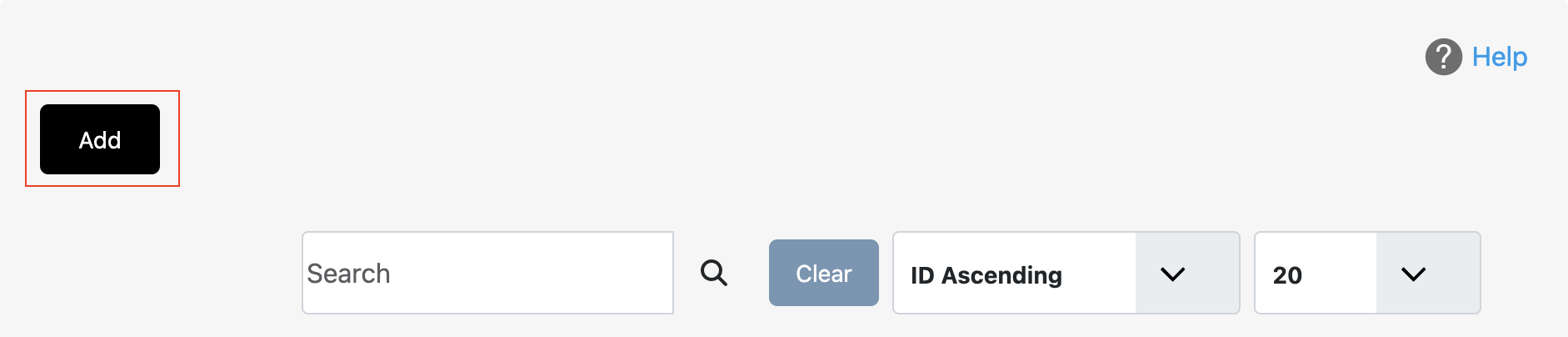
- Click Add button to open Invoice section.
-
Click the Calendar icon to open Calendar view and select Due Date.
-
Click Select Payer drop down in Customer field. Select an existing customer (if exist) or select Add new customer
to enter data directly into form.
Note: Existing Customers who previously made a payment and are located under Customers section.
Review under Manage Customer document. -
If selection is Add new customer proceed to enter the Customer Name and Email. If selection was
existing customer proceed to next step. -
Click Select Product drop down in the Item field. Click existing product if any have been added to
Product Catalog or select Add New Product to proceed to enter data directly into form. -
Enter Item name of product/service, Qty by click the up and down arrows, Price of item, to add
product to Product Catalog you can click box for Add item to product catalog. Next, click
Save and Add Other if additional items need to be added, else click Save to complete adding
product(s)/service(s). -
Finally enter Discount (dollar amount) if any, Tax (percent ex. 8.25). Click Submit to send invoice.
- To Edit existing invoice click the Pen/Box icon to access Invoice screen.
Note: You can only edit an Invoice that has not been paid. Once edited and submitted the person
invoiced will receive a new email. If they click the link on original invoice the new changes will be
reflected.
- To Delete an invoice click Trash icon.

Note: If the invoice recipient accidentally click Pay Now on the invoice after already paying, they will see the
receipt rather than the invoice.
- Click Reports in main menu.

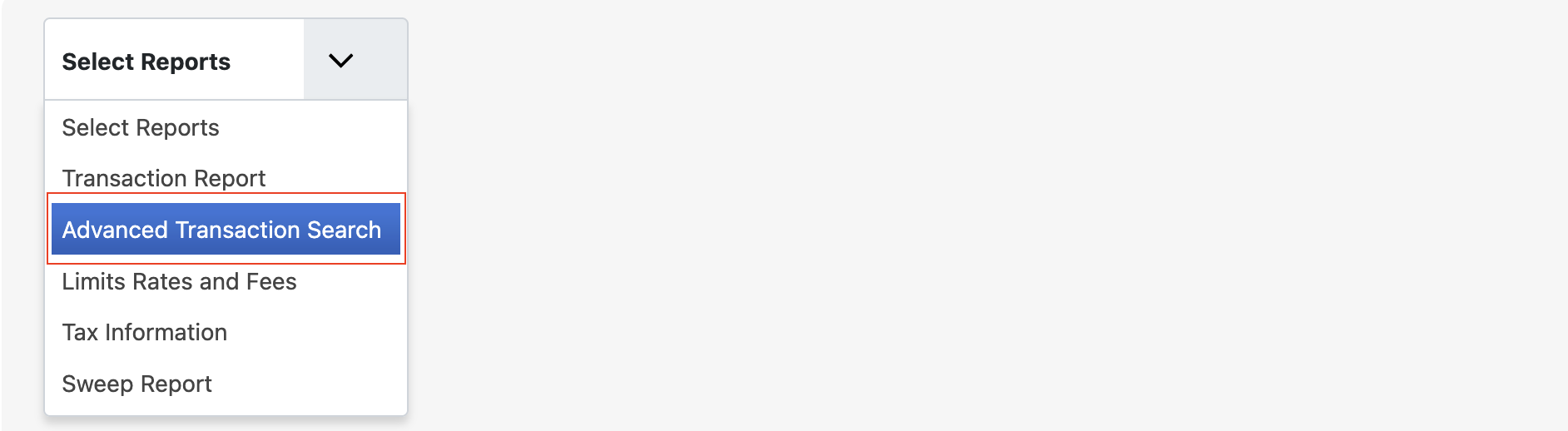
- Click Select Report drop down then click Advance Transaction Search.
-
Click Starting & Ending Date boxes to select your date range then click Search to view transactions.
-
Scroll down to Pending Transactions to locate the transaction you would like to void. Click Trans #
with blue color (ex. 275 image below) to view Transaction Details. -
Proceed to scroll to the bottom to view Void button (button with red box around), then click to
Void Transaction. -
Next, if successful you will see the following message:
- Click Reports in main menu.
- Click Select Report drop down then click Transaction Report.
-
Start by clicking Starting & Ending Date boxes to select your date range then click Search to
view transactions. -
Scroll down to Completed Transactions and click Trans # (ex. 258 image below) to view
Transaction Details. -
On Transaction Details scroll to the bottom. Enter Refund Amount followed by clicking
on Refund Transaction button. -
Finally the following message will display:
-
Click My Profile in main menu, scroll down to Account Management.
-
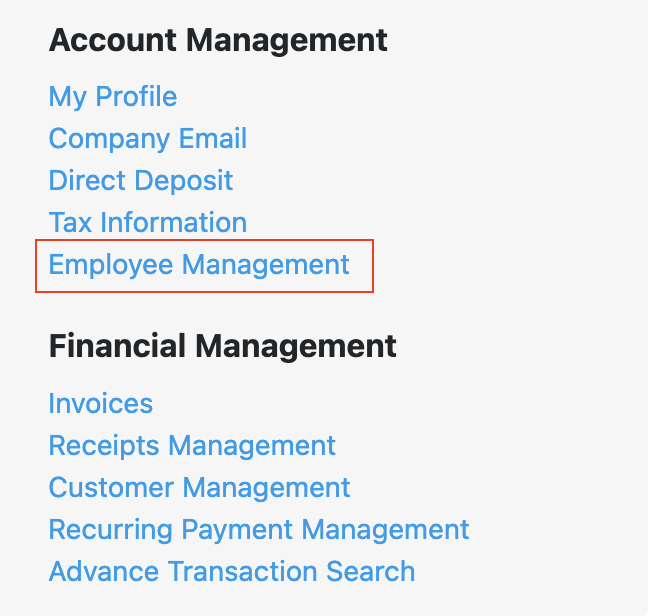
Click Employee link to access Employee Management screen.
-
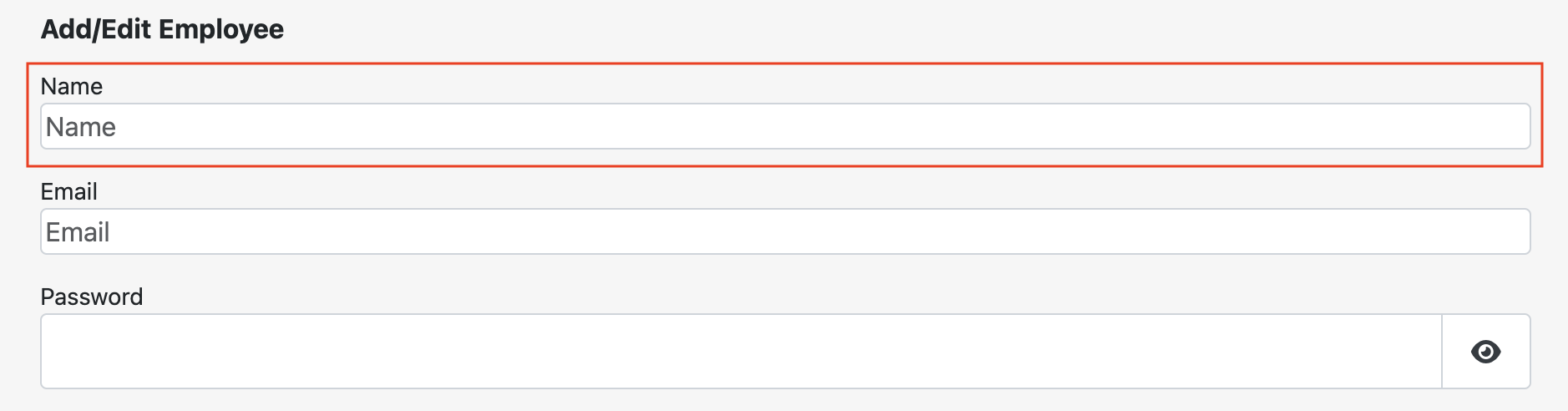
Click Add button to access Add/Edit Employee screen.

-
Enter employee Name, Email, and Password.
-
Next, click Employee Permission drop down to assign the type of permission for Employee, click
Submit to finish.
Note:
Limited Access can only process payments and submit invoices.
Full Access will have full access to portal features as owner.
- To remove Employee account click trash icon under Actions.

- To edit Employee account click employee name under Name to access Add/Edit Employee screen.

-
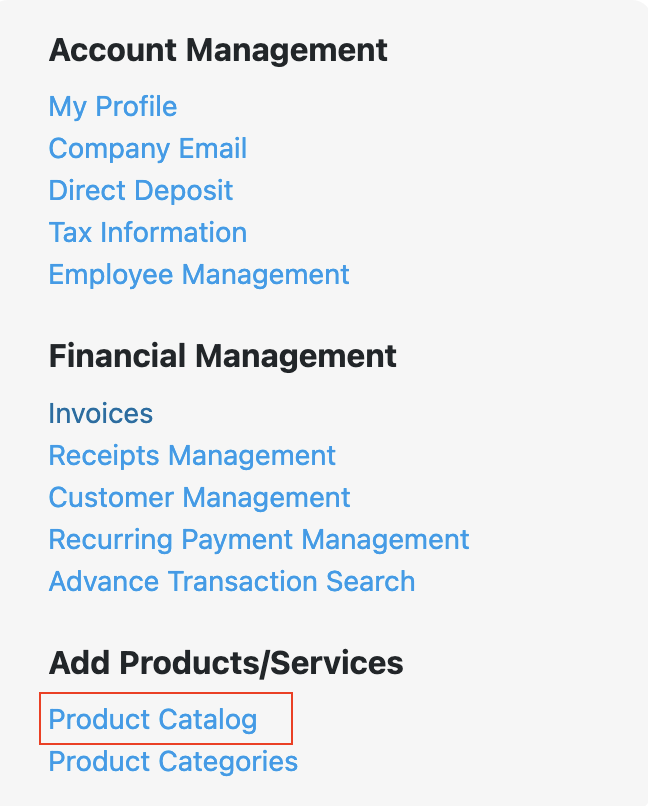
Click Invoices in main menu, scroll down to Add Products/Services.
-
Click Product Catalog link to access Product Catalog screen.
-
Click Add button to access Add/Edit screen.

-
Enter product/service Name and Price, click Submit button to complete.
Note: Products can be added from Invoice, review Invoice document for details.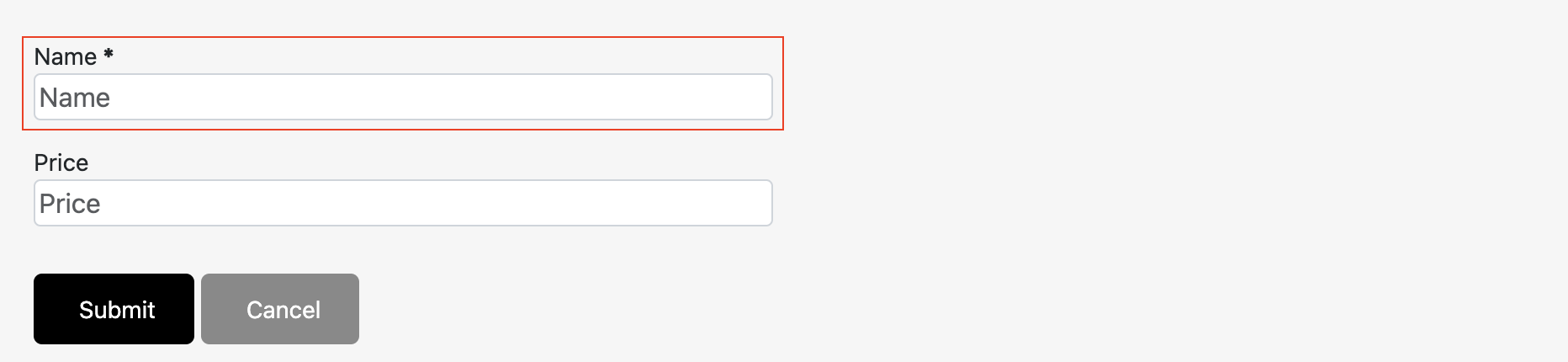
- To remove Product/Service click the Delete.
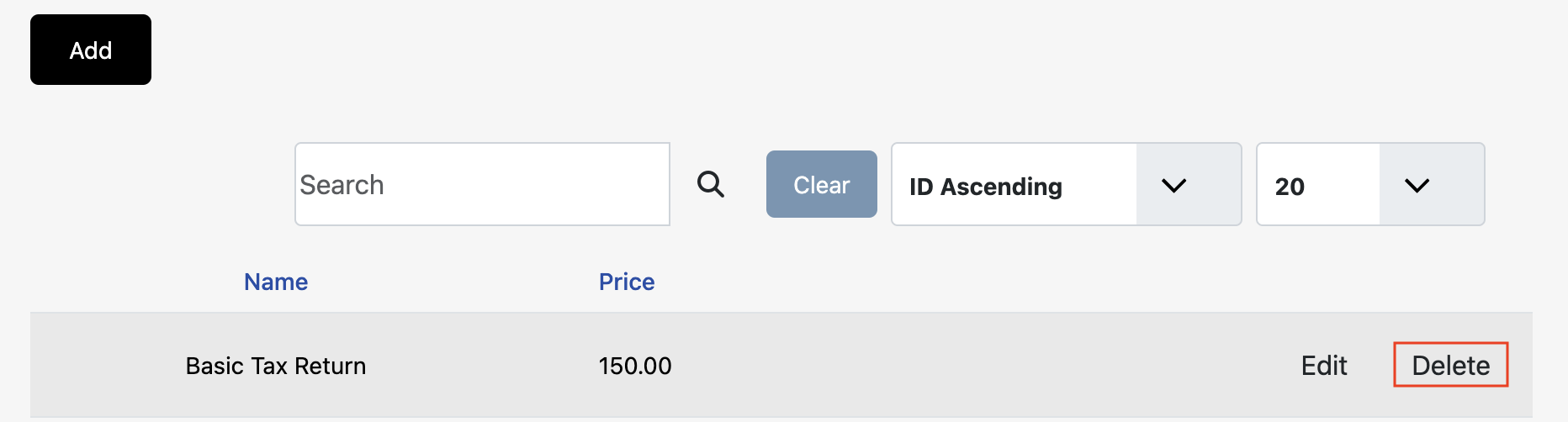
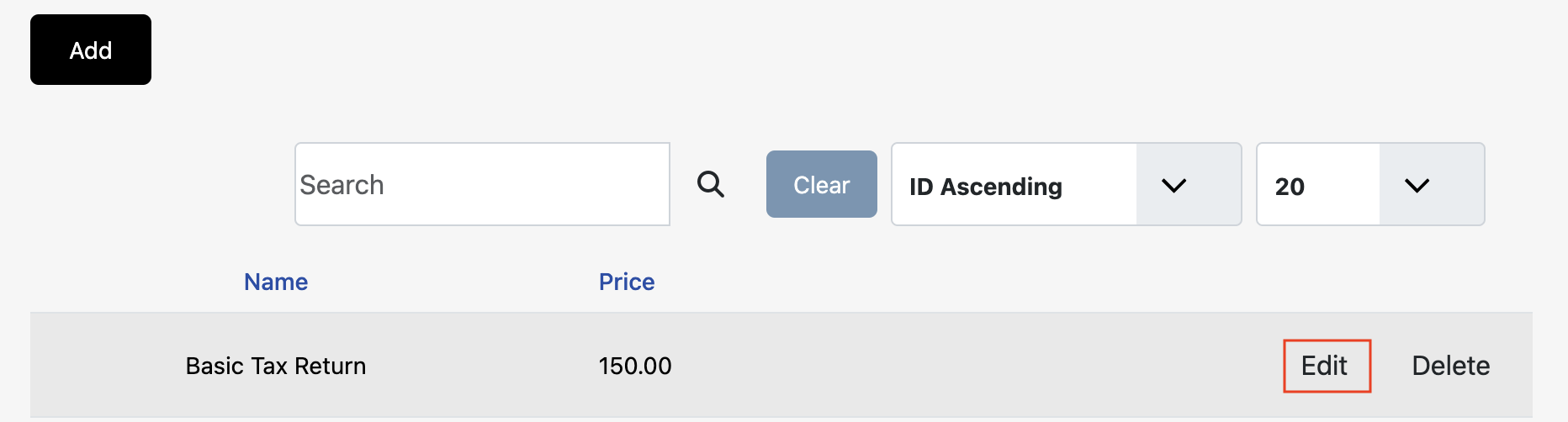
- To edit Product/Service click Edit to access the Edit screen.
-
Click Process Payment on main menu.

-
Enter Amount (ex. $125.00), Invoice Number (optional), Name, Email and Description (optional) then
click Process to proceed with Credit/Debit Card payment.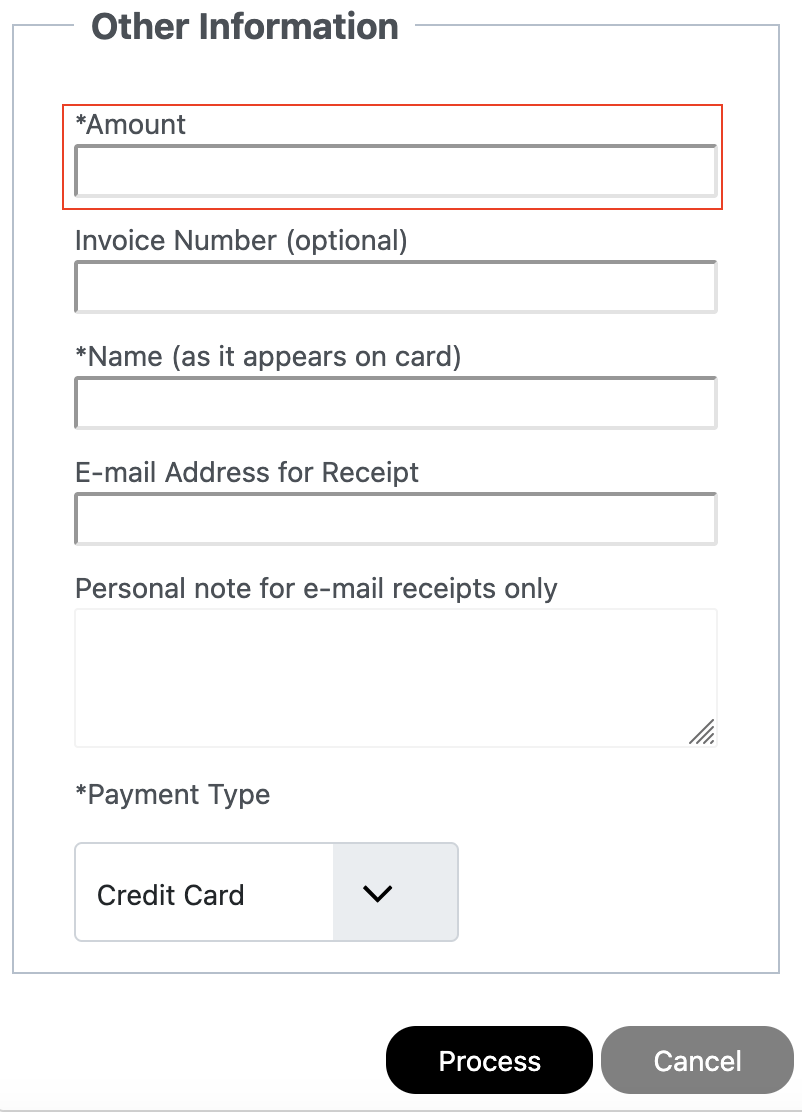
-
Next, Order Information displays charge Amount. Enter Name, Card Number, Expiration Date,
CCV, Description (optional), Address, City, State, and Postal Code. Finally click Process to
process payment.
Note: All information must match credit/debit card billing information.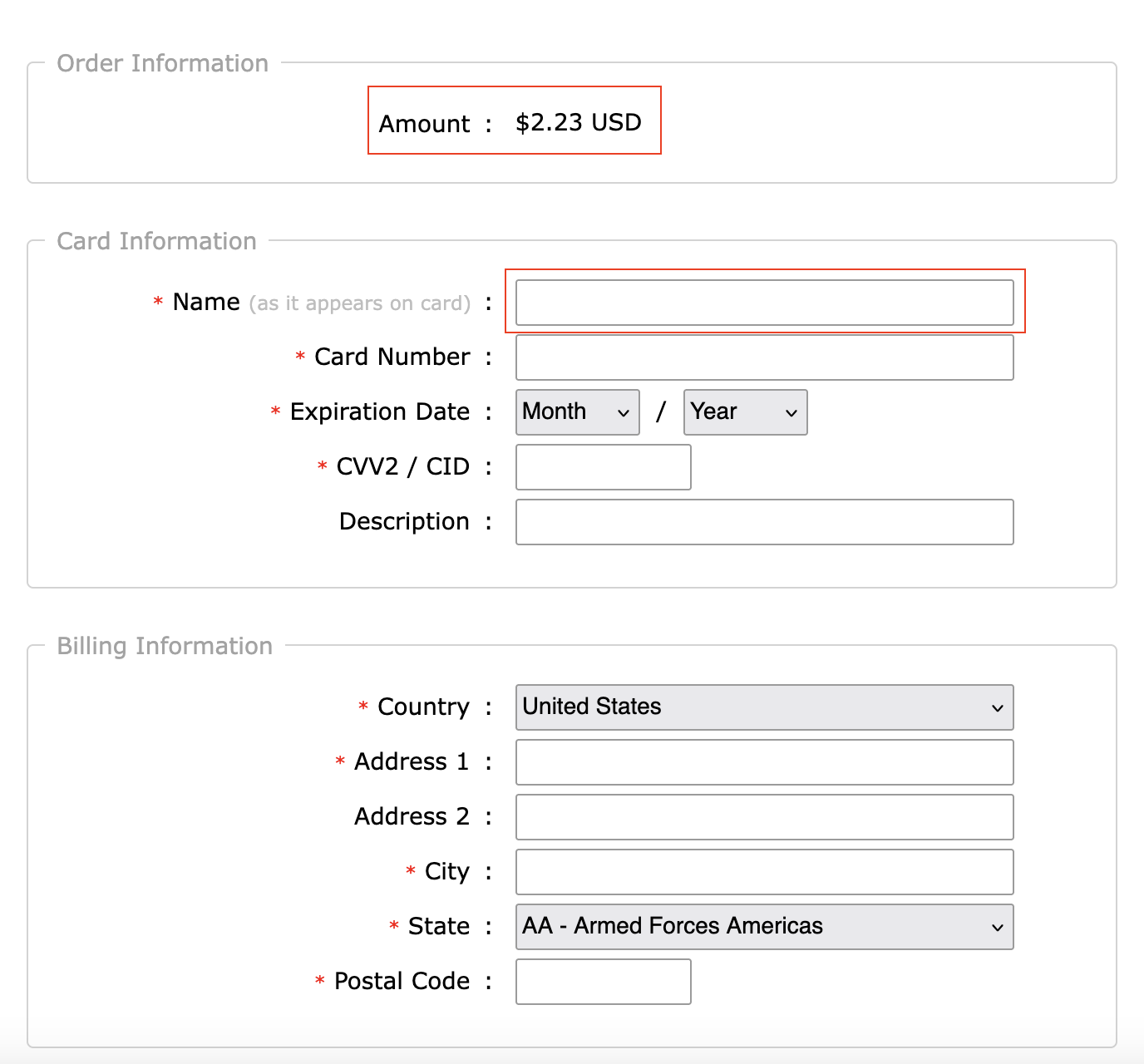
- On payment a receipt will be sent automatically to the customer's email entered, and a screen
with receipt view will display to Download a copy if needed. Else click Circle with X to close.
Note: A copy or Receipt can be found under side menu under Account Management. View Receipt
link document for more information.
-
Click Process Payment on main menu.
-
If existing customer exist, click Select Customer and click Name, else skip this step.
Note: Existing customers are made up of customers who have made a payment in the portal. These
customers are automatically added to Manage Customer located in the side menu under My Profile. -
Enter Amount (ex. $125.00), Invoice Number (optional), Name, Email and Personal Note (optional),
click Payment Type and select Bank Account for ACH payment, then click Process to proceed.
Note: If testing minimum is $1.17+.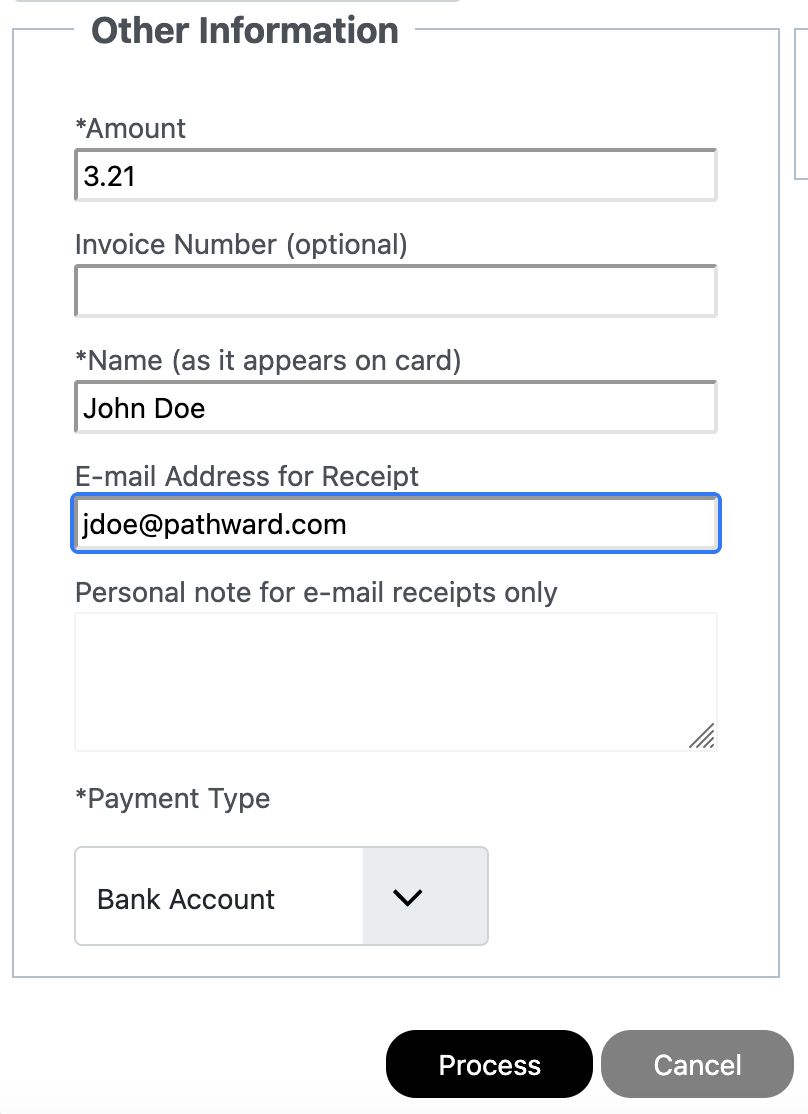
-
Next, Order Information displays charge Amount. select Account Type, Routing Number,
Account Number. Finally click Process to process payment.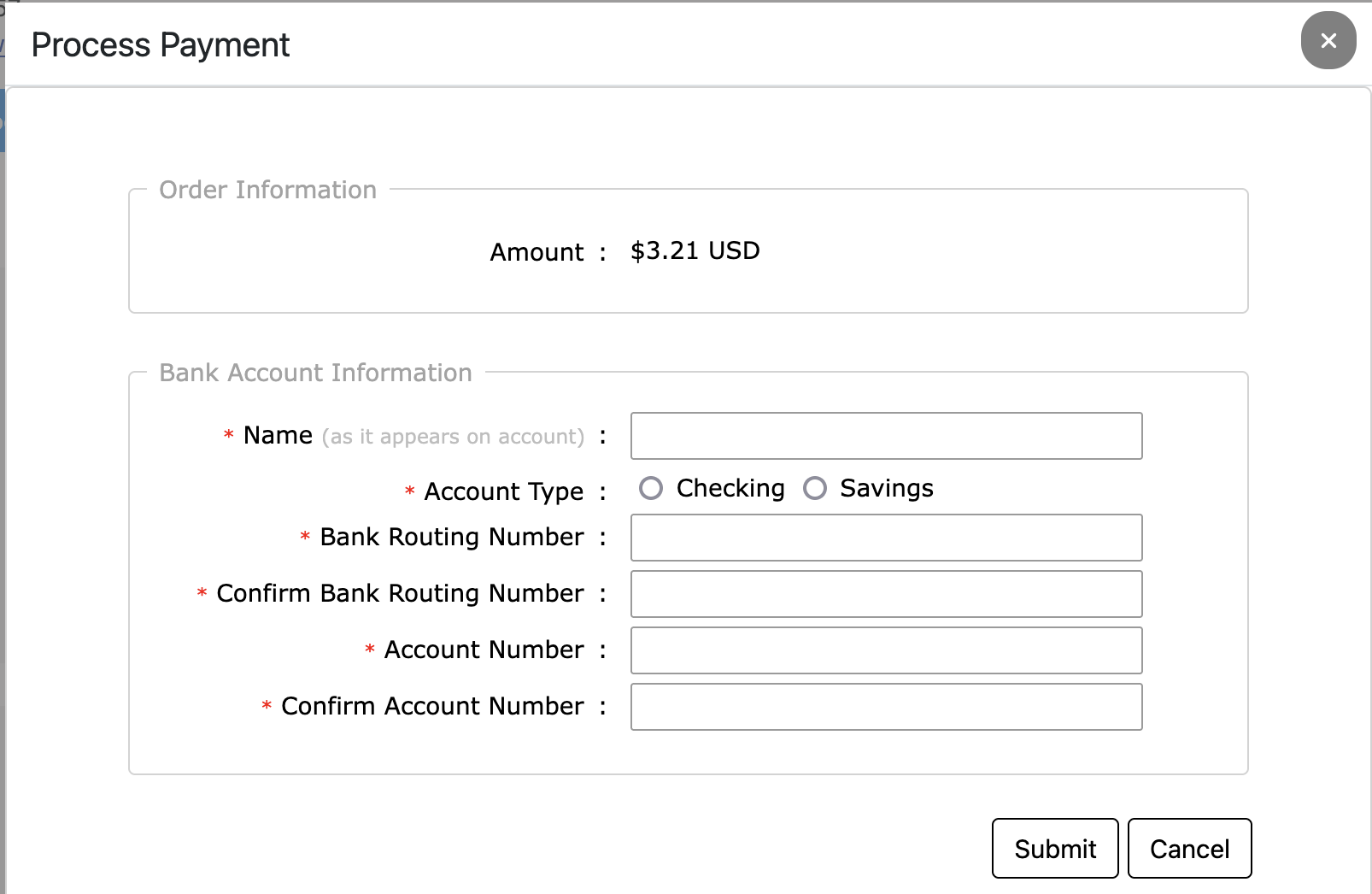
- On payment a receipt will be sent automatically to the customer's email entered, and a screen
with receipt view will display to Download a copy if needed. Else click Circle with X to close.
Note: A copy or Receipt can be found under side menu under Account Management. View Receipt
link document for more information.
-
Click Process Payment on main menu.
-
Start on Other Information by entering the initial payment Amount, Name and Email (optional) of Customer.
Then click Save Customer Info and Set Recurring Payment box. Click Process button to continue.
Note: Select Payment Type for Credit/Debit Card or Bank Account (If ACH enabled on Account.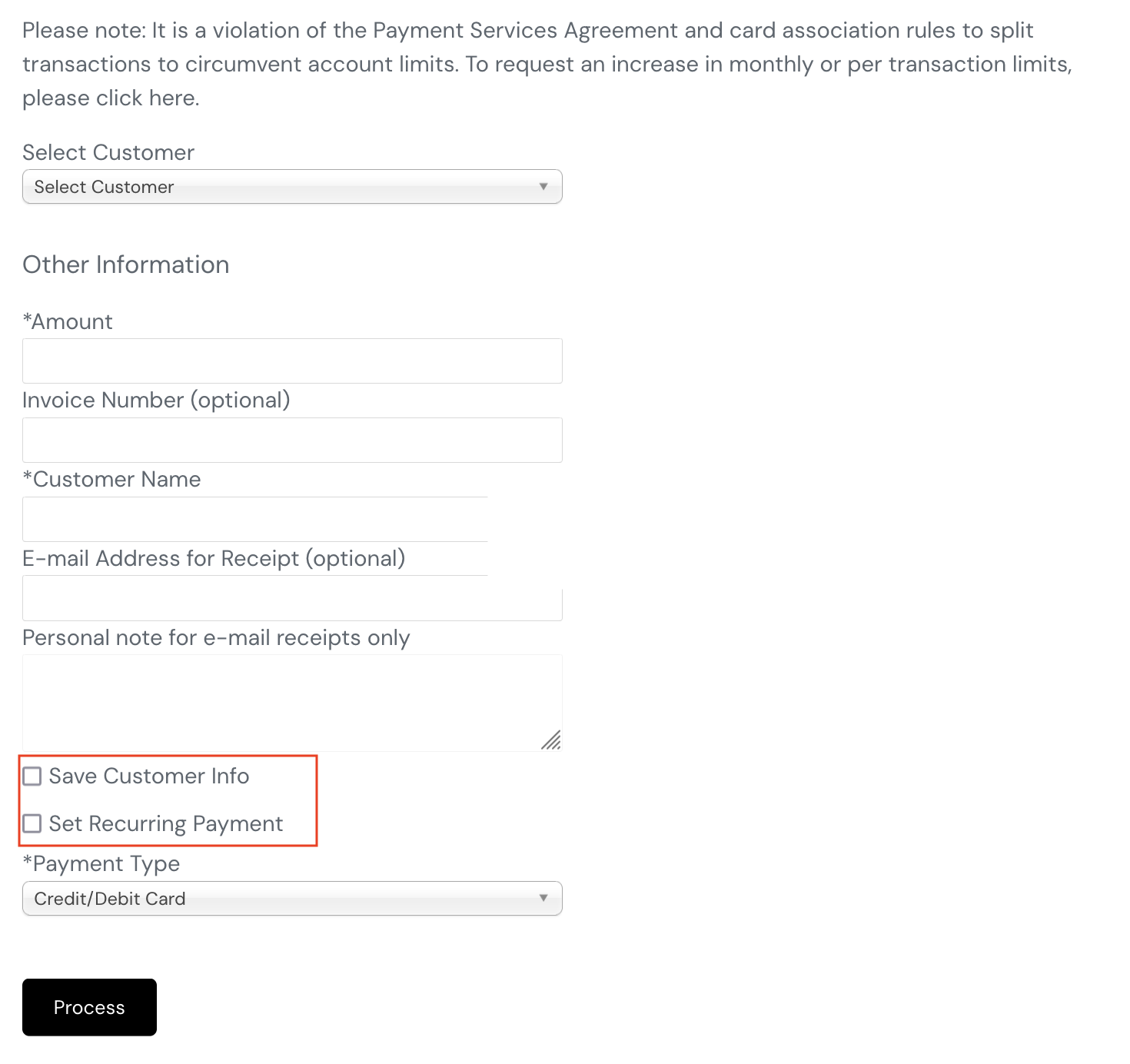
-
Enter the Payment Amount. Click Calendar Icon to select the Start Date of the next payment.
Click Calendar Icon to select End Date for last payment. Click Frequency drop down and select how
often the payments will be made. Click Process to proceed with initial payment.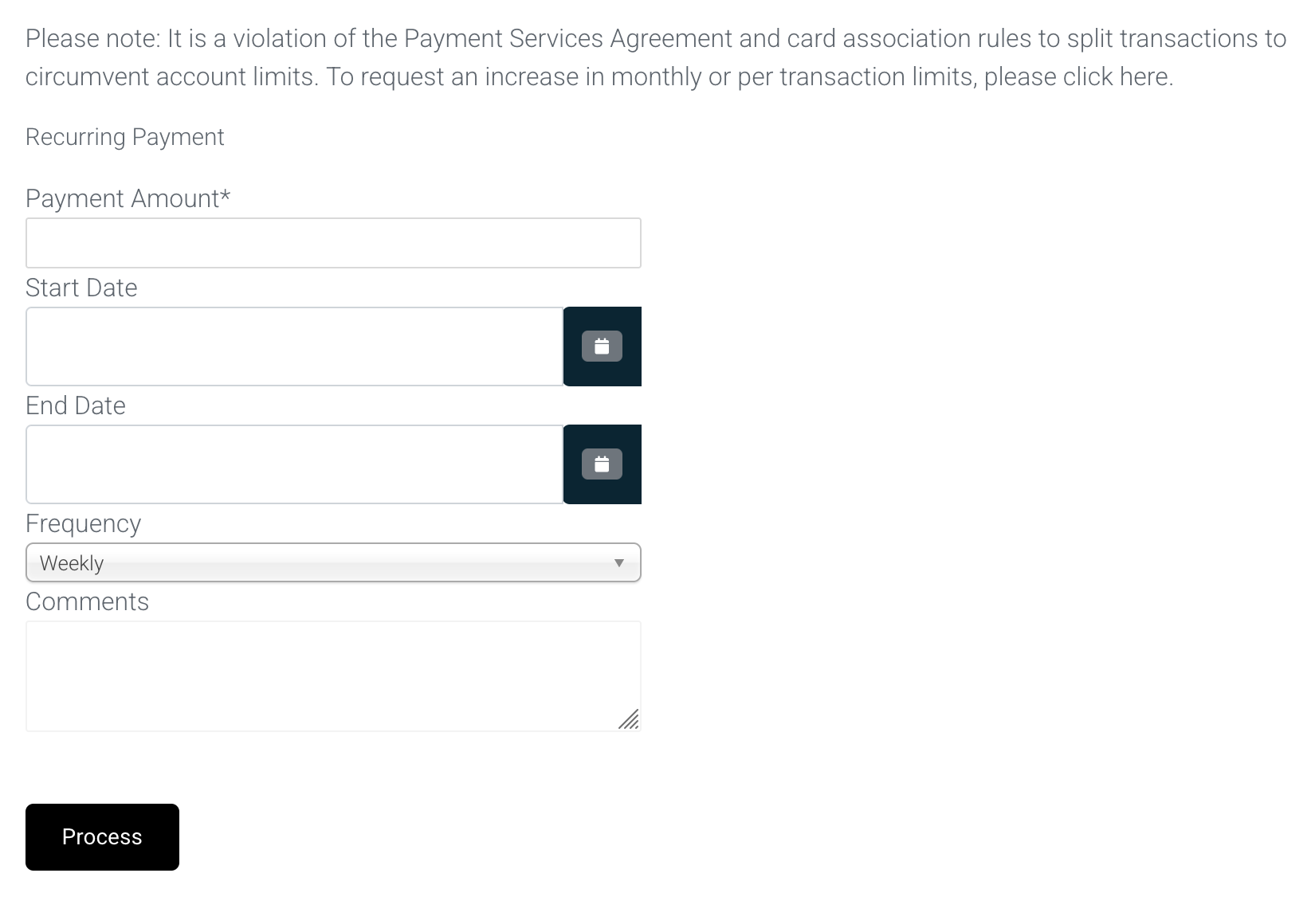
-
If initial payment is Credit/Debit Card, else if Bank Account (ACH) skip to step 5.
Order Information displays charge Amount. Enter Name, Card Number, Expiration Date,
CCV, Description (optional), Address, City, State, and Postal Code. Finally click Process to
process payment.
Note: All information must match credit/debit card billing information.
On payment a receipt will be sent automatically to the customer's email entered, and a screen
with receipt view will display to Download a copy if needed. Else click Circle with X to close.
Note: A copy or Receipt can be found under side menu under Account Management. View Receipt
link document for more information. -
Next, Order Information displays charge Amount. select Account Type, Routing Number,
Account Number. Finally click Process to process payment.
On payment a receipt will be sent automatically to the customer's email entered, and a screen
with receipt view will display to Download a copy if needed. Else click Circle with X to close.
Note: A copy or Receipt can be found under side menu under Account Management. View Receipt
link document for more information.
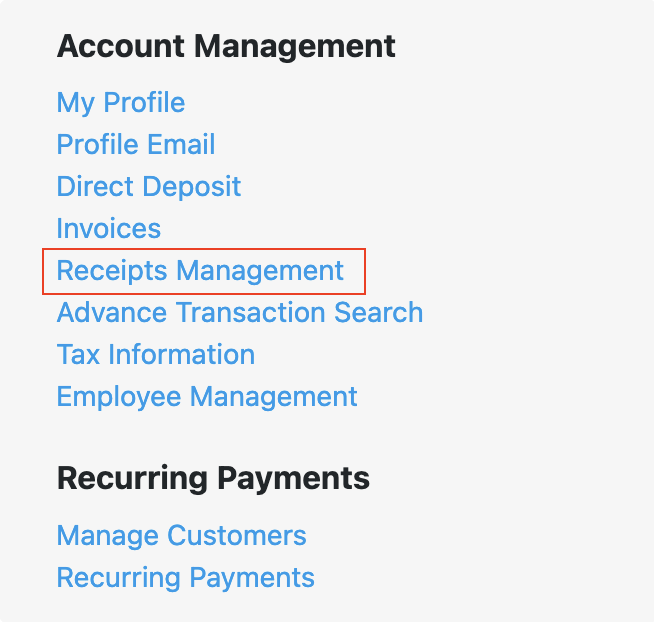
- Click My Profile in main menu, scroll down to Account Management.
-
Click Receipts Manager on main menu.
-
Receipts Management will display the Customer, Customer's Email, Amount charged. To View, Print,
Download existing Receipt click on the customer name under Customer. To delete an receipt click the
Trash Icon. To email a copy to recipient again click Re-Send (this will send to the existing email).
Note: Click view PDF to download and email to a different email address if needed.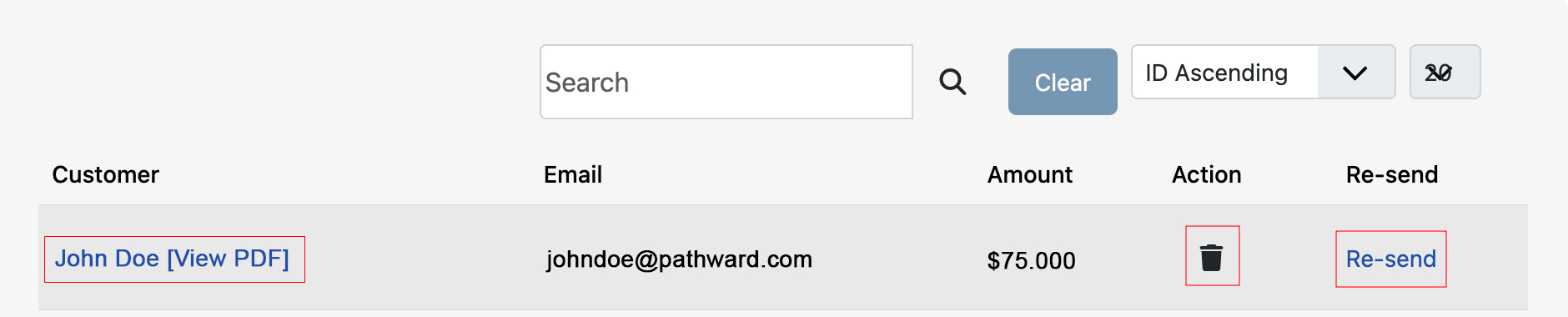
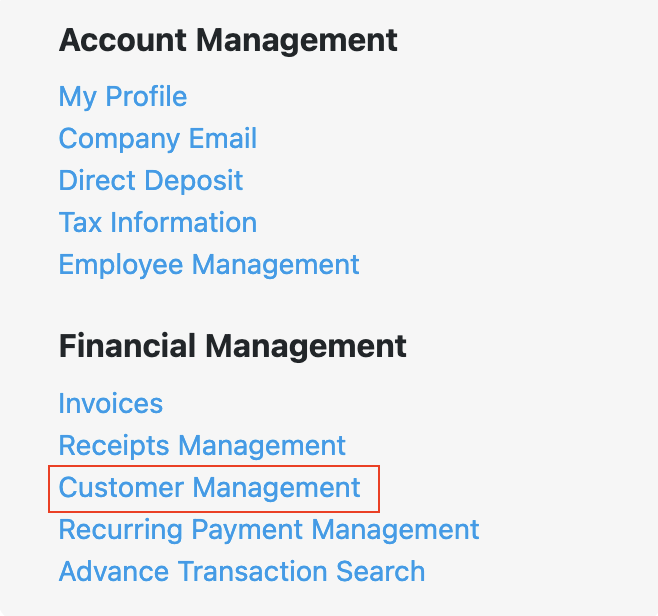
- Click My Profile in main menu, scroll down to Financial Management.
-
Click Customer Management on main menu.
-
Customer Management will display customers that have been charged through the Merchant Portal.
The Customer Management allows you to delete data if no longer needed.
Note: Stored customers will display on Select Customer located on Process Payment, which allows the
the account to be selected to charge existing Credit/Debit Card or Bank Account (ACH). Stored customers
can also be used under Select Payer on Invoice section.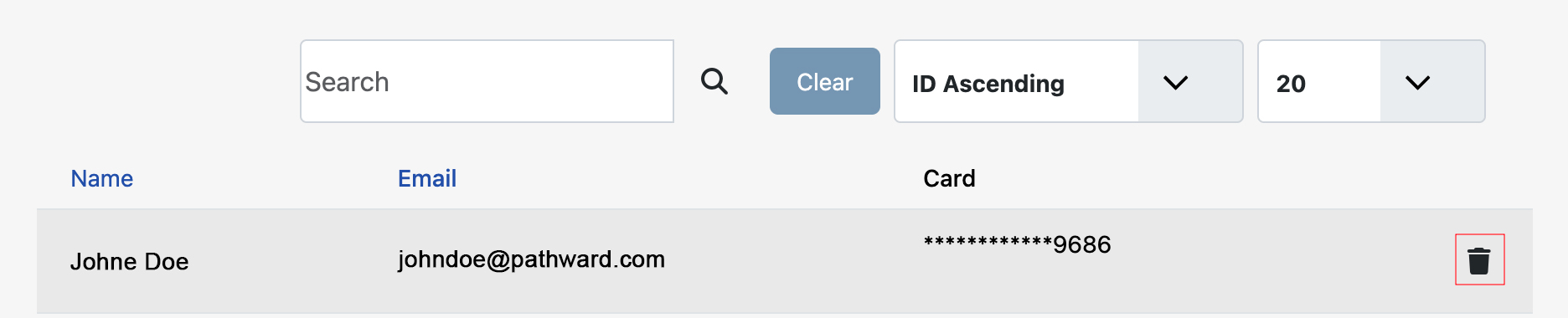
- Click Process Payment in main menu.
-
Click Save Customer Info box. If checked the feature will stay active for all customers until unchecked.
Note: To remove an Saved Payment Info navigate to Customer Management in Financial Management
under My Profile.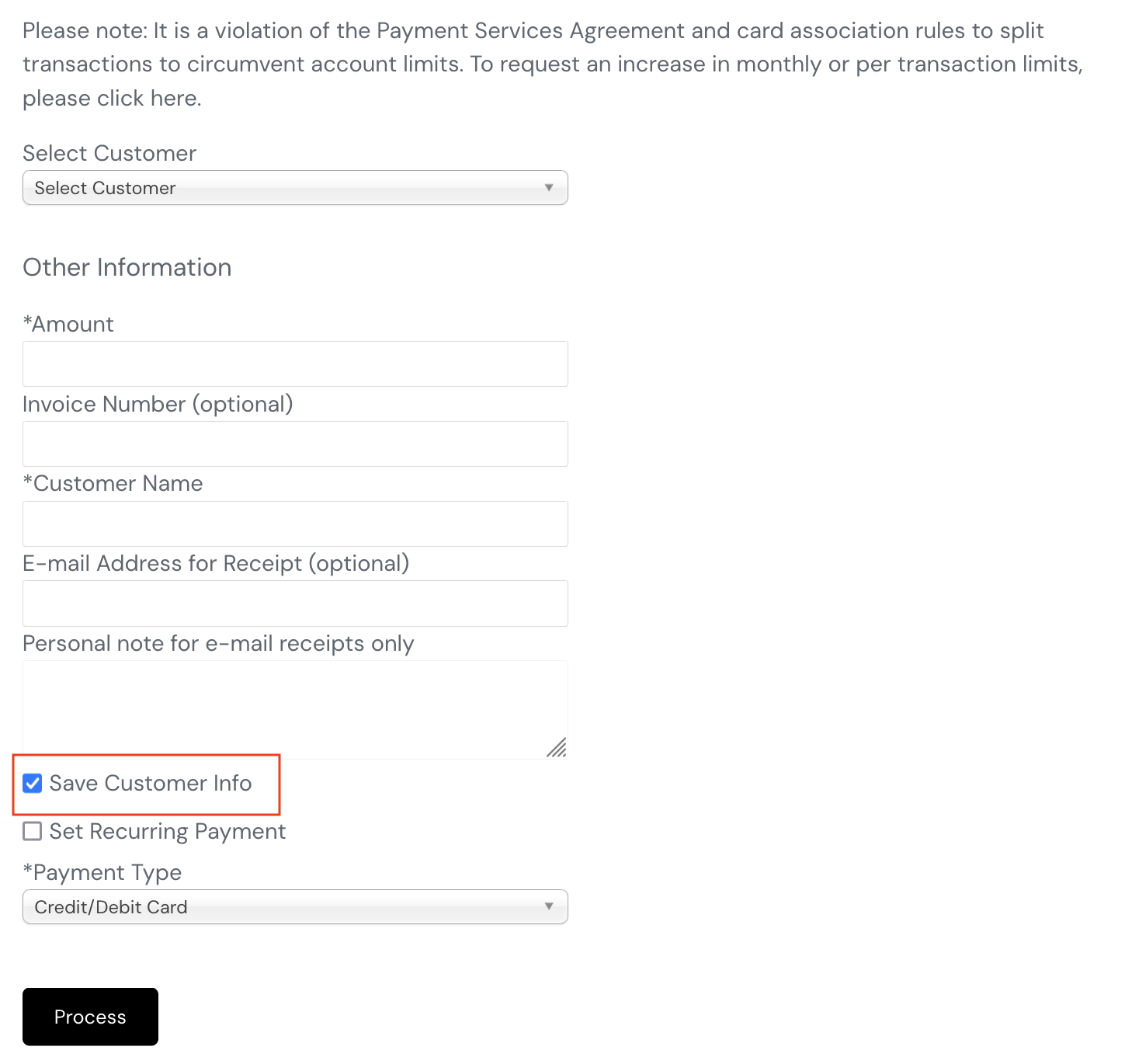
-
Click Process Payment on main menu.

-
Enter payment information and click Save Customer Info.
Note: On click Save Customer Info will remain active moving forward and all customers will be saved
until it is unchecked.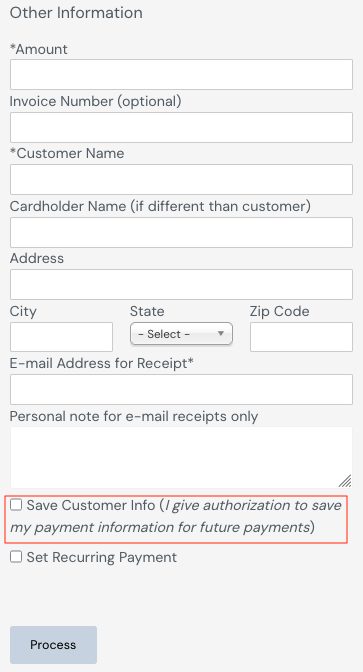
- Click My Profile in main menu, scroll down to Account Management.

-
Click Receipts Manager on main menu.
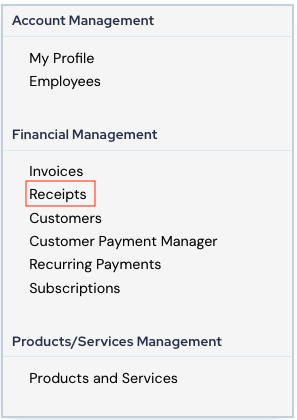
-
Receipts Management will display the Customer, Customer's Email, Amount charged. To View, Print,
Download existing Receipt click on the customer name under Customer. To delete an receipt click the
Trash Icon. To email a copy to recipient again click Re-Send (this will send to the existing email).
Note: Click view PDF to download and email to a different email address if needed.
-
To create Recurring Payments. Option option can be done if you Click Process Payment on main
menu. -
Enter Amount of initial payment, Customer Name, Cardholder Name (if different), Email and any
additional information you would like. Below click Save Customer Info and Set Recurring Payment.
Next click Process button to proceed.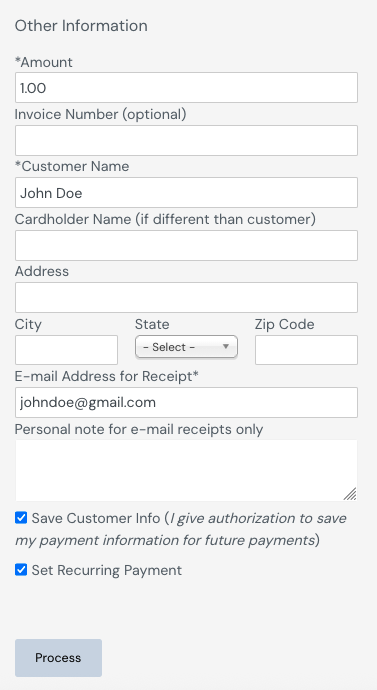
-
Enter the Payment Amount. Click Calendar Icon to select the Start Date of the next payment.
Click Calendar Icon to select End Date for last payment. Click Frequency drop down and select how
often the payments will be made. Click Process to proceed with initial payment. -
Enter Card Number, Expiration Date, CCV, and Zip Code. Next click Process button to
take initial payment.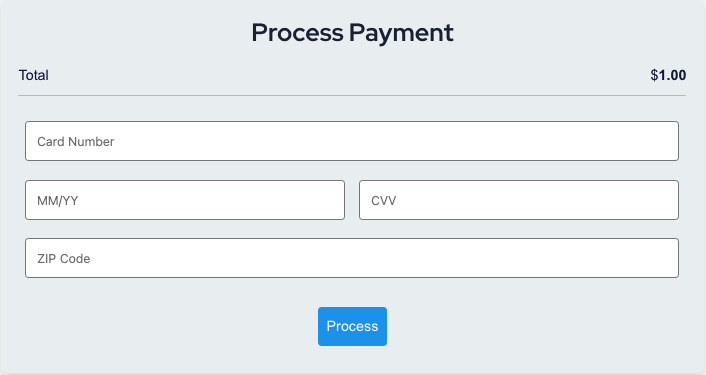
On payment a receipt will be sent automatically to the customer's email entered, and a screen
with receipt view will display to Download a copy if needed. Else click Circle with X to close.
Note: A copy or Receipt can be found under side menu under Account Management. View Receipt
link document for more information.
-
Click Process Payment on main menu.
-
Enter Amount (ex. $125.00), Invoice Number (optional), Customer Name, Cardholder Name
(if different than Customer Name) mail and Description (optional) then click Process to proceed
with Credit/Debit Card payment.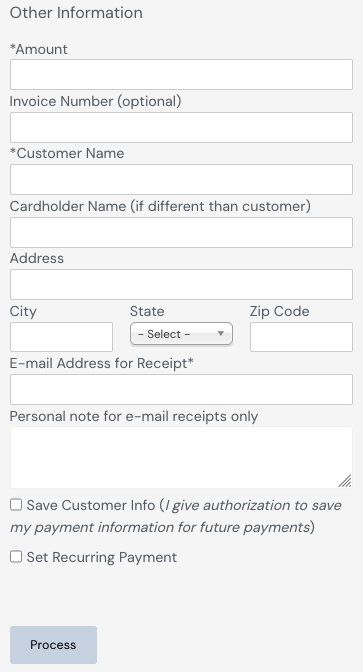
-
Next, Card Number, Expiration Date,CCV, and Postal Code. Finally click Process to take
payment. - On payment a receipt will be sent automatically to the customer's email entered, and a screen
with receipt view will display to Download a copy if needed. Else click Circle with X to close.
Note: A copy or Receipt can be found under side menu under Account Management. View Receipt
link document for more information.
-
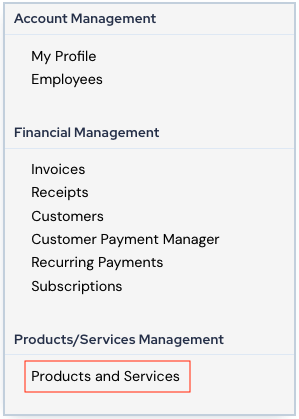
Click Invoices in main menu, scroll down to Products and Services.

-
Click Products and Services.
-
Click Add button to access Add/Edit screen.
-
Enter product/service Name and Price, click Submit button to complete.
Note: Products can be added from Invoice, review Invoice document for details. - To remove Product/Service click the Delete.
- To edit Product/Service click Edit to access the Edit screen.
-
Click My Profile in main menu, or scroll down to Account Management.
-
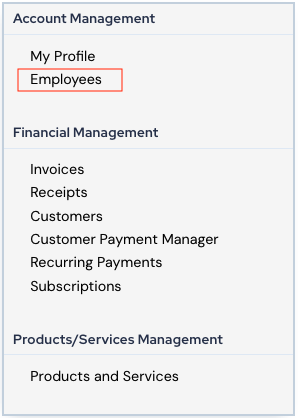
Click Employee link to access Employee Management screen.
-
Click Add button to access Add/Edit Employee screen.
-
Enter employee Name, Email, and Password.
-
Next, click Employee Permission drop down to assign the type of permission for Employee, click
Submit to finish.
Note:
Limited Access can only process payments and submit invoices.
Full Access will have full access to portal features as owner. - To remove Employee account click trash icon under Actions.
- To edit Employee account click employee name under Name to access Add/Edit Employee screen.
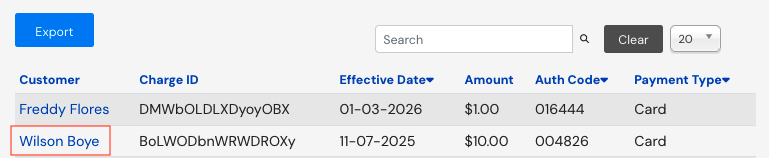
- Click Reports in main menu.

- Click Customer Name to open the payment.
-
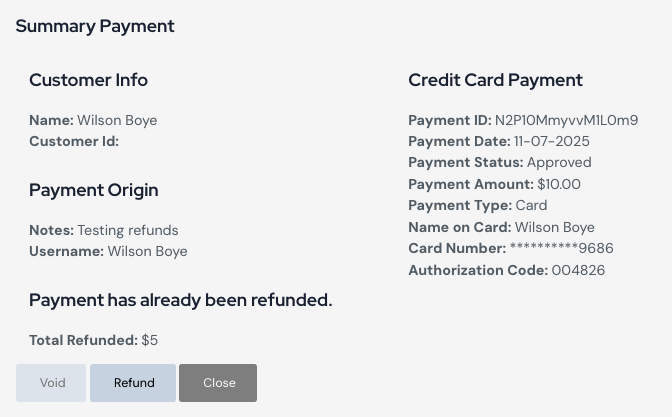
The following screen will display the payment details.
-
To process a refund click Refund button.
Note: The refund button will be grayed out until the payment has fully processed.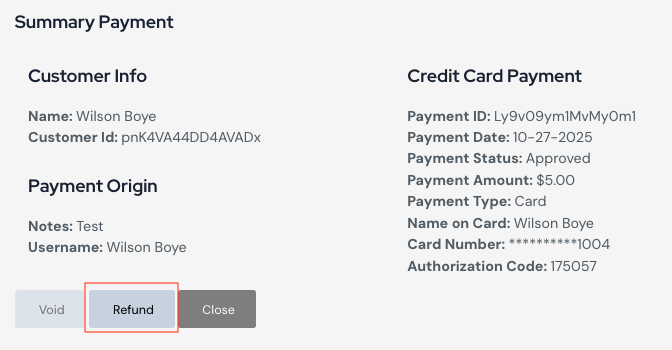
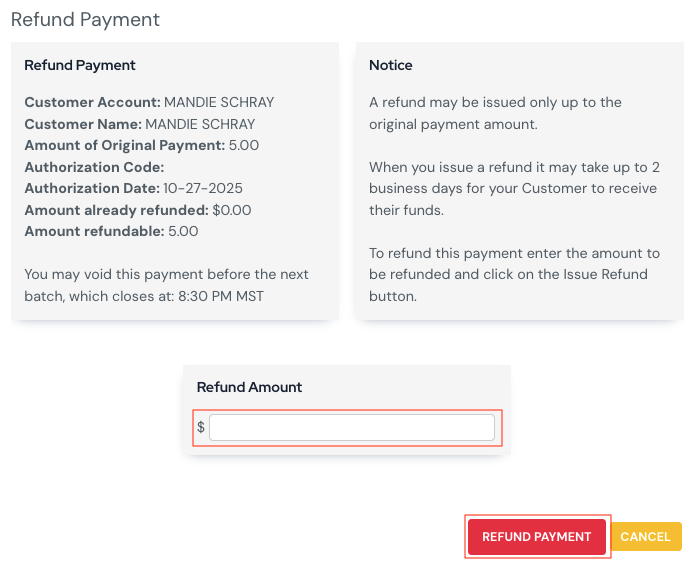
- Next, a refund screen will display. Enter a partial or full amount, then click Refund Payment.
- Click Reports in main menu.
- Click Customer Name to open the payment.
-
The following screen will display the payment details.
-
To Void payment click the Void button. A confirmation screen will display when the payment is
voided successfully.
Note: The void button will be grayed out once the payment has fully processed.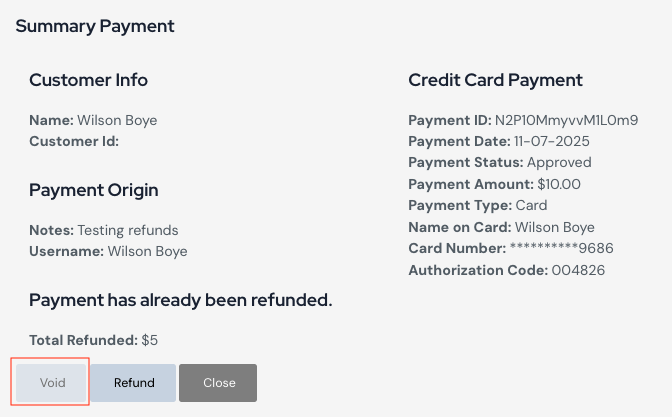
- Click Invoices in main menu.
- Click Add button to open Invoice section.
-
Click the Calendar icon to open Calendar view and select Due Date.
-
Click Select Payer drop down in Customer field. Select an existing customer (if exist) or select Add new customer
to enter data directly into form.
Note: Existing Customers who previously made a payment and are located under Customers section.
Review under Manage Customer document. -
If selection is Add new customer proceed to enter the Customer Name and Email. If selection was
existing customer proceed to next step. -
Click Select Product drop down in the Item field. Click existing product if any have been added to
Product Catalog or select Add New Product to proceed to enter data directly into form. -
Enter Item name of product/service, Qty by click the up and down arrows, Price of item, to add
product to Product Catalog you can click box for Add item to product catalog. Next, click
Save and Add Other if additional items need to be added, else click Save to complete adding
product(s)/service(s). -
Finally enter Discount (dollar amount) if any, Tax (percent ex. 8.25). Click Review Invoice to for more
invoice features.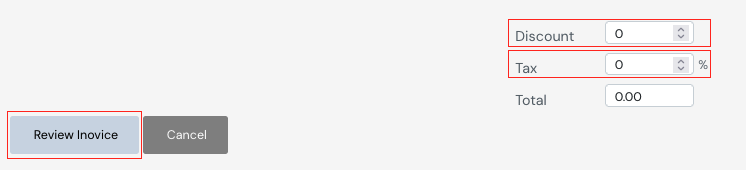
- The Review section will display the email notification on the left and additional options on the right. To send the
invoice to multiple email accounts click Additional CC Recipients box and and enter the additional email accounts
separated by a comma. If done, Click the green Finalize and Send button.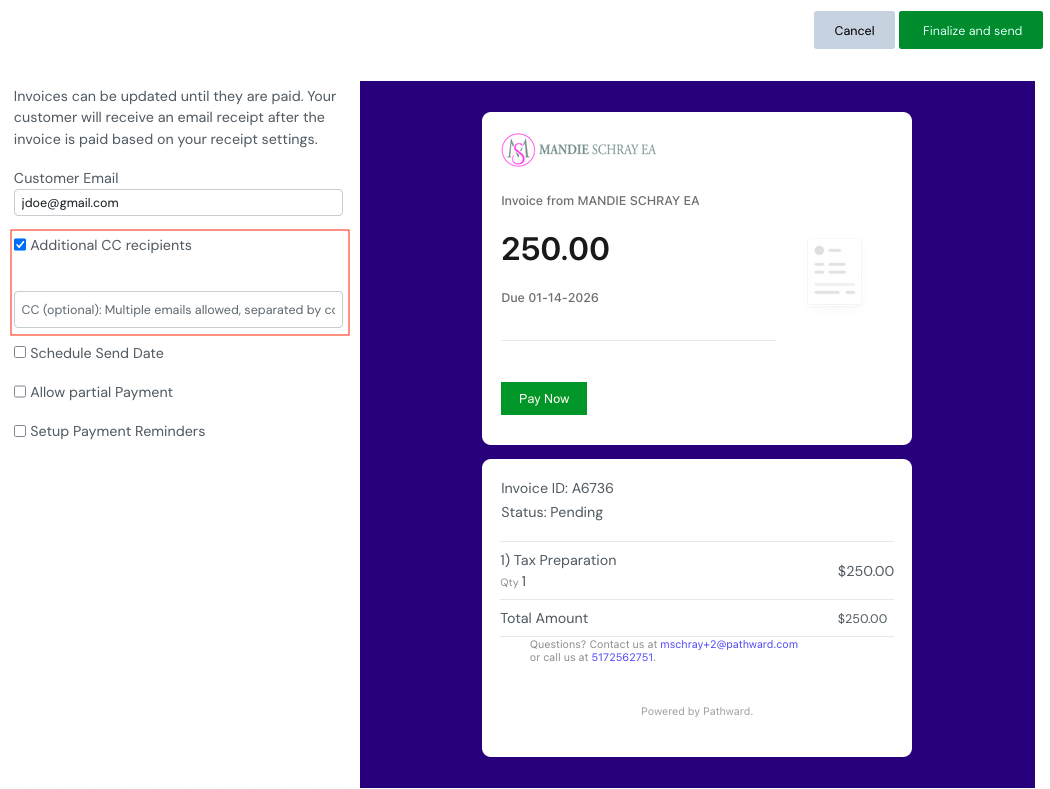
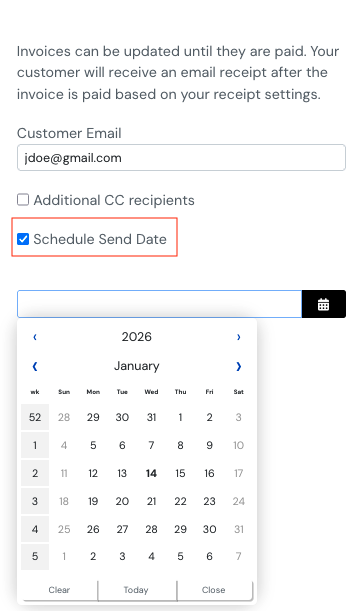
- To schedule when the email will go out, click Send Date then use the calendar to select the month and day. If done, Click the green Finalize and Send button.
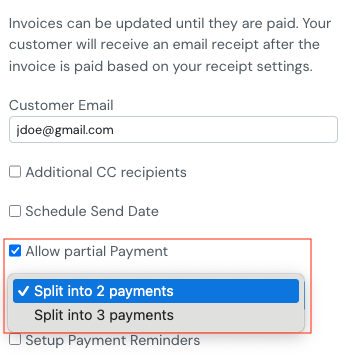
- To allow for partial payments click Allow Partial Payments box and select option. If done, Click the green Finalize and Send button. If done, Click the green Finalize and Send button.
- To add payment reminders click Setup Payment Reminders.
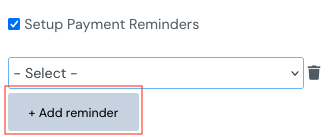
- Next select preferred option. Click the green Finalize and Send button

- To Edit existing invoice click the Pen/Box icon to access Invoice screen.
Note: You can only edit an Invoice that has not been paid. Once edited and submitted the person
invoiced will receive a new email. If they click the link on original invoice the new changes will be
reflected. - To Delete an invoice click Trash icon.
Note: If the invoice recipient accidentally click Pay Now on the invoice after already paying, they will see the
receipt rather than the invoice.
-
Click My Profile in main menu, scroll down to Company Logo.
-
Scroll down and Click Browse button under Company Logo navigate logo stored location on the
computer and select logo (jpg or png format only). Click Submit when done.
- Click Reports in main menu.
- Click Export to export the payment report as a Excel file.

-
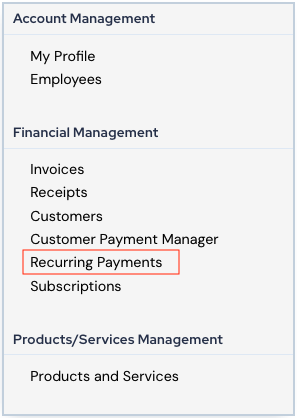
Click Recurring Payments under Financial Management.
-
Next click Customer Name.

-
In the recurring view you can click Skip Payment, Stop Process, Update Payment, edit End Date, and
Export to spreadsheet.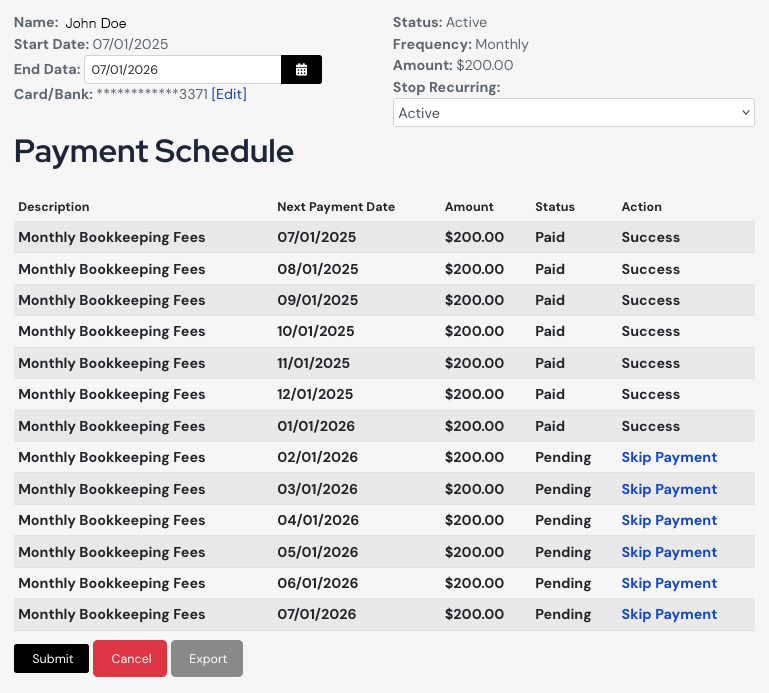
-
Click Subscriptions under Financial Management.
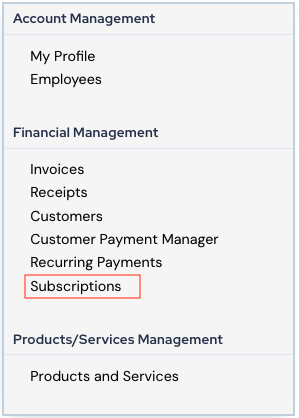
-
Next click Add button to proceed.
Notes: Requires a customer added first to use feature.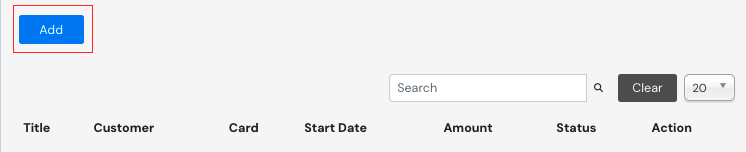
-
In the Subscription view add Title of service, Amount, Start Date, Select Customer (Name and Email will
be filled automatically), Description (optional).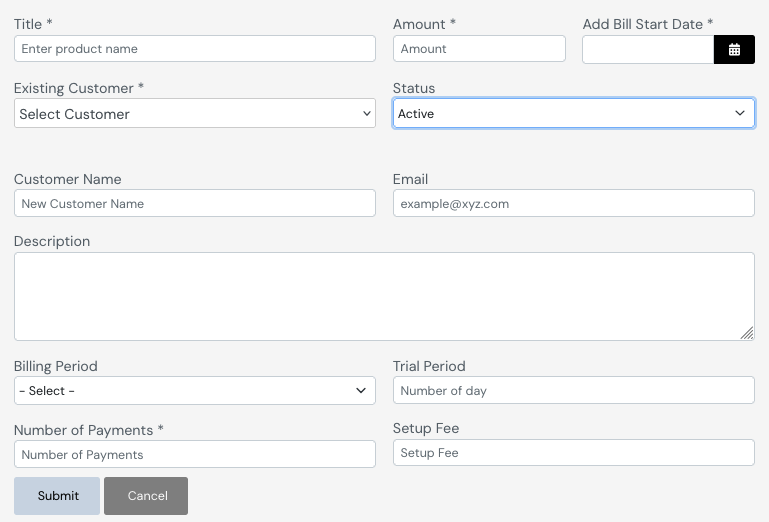
- Select the Billing Period.
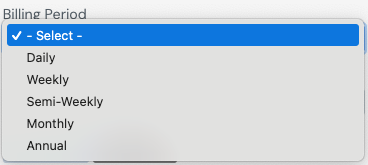
- Add Trial Period (payment will be due after time frame).
- Add Number of Payments
- Add Setup Fee (optional)
Note: This fee is use for an initial payment if different than the subscription amount. - Click Submit after entering information needed.
Note: An invoice will be sent via email with payment request and the subscription will be
added to Recurring Payments to process.
-
Click My Profile in main menu, or scroll down to Account Management.
-
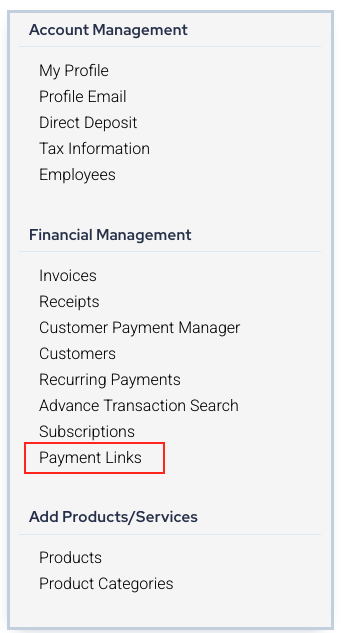
Click Payment Links.
-
Click Add.

-
Enter the payment link Title below you have the option to display the title in the link. Next enter Amount, Tax (if any), and Description (if any, any information entered will display on the payment screen). Once done click Submit.
Note: If you enter 0.00 as the amount the customer will be allowed to enter the payment amount. If you enter an actual amount the customer will not be able to edit the amount.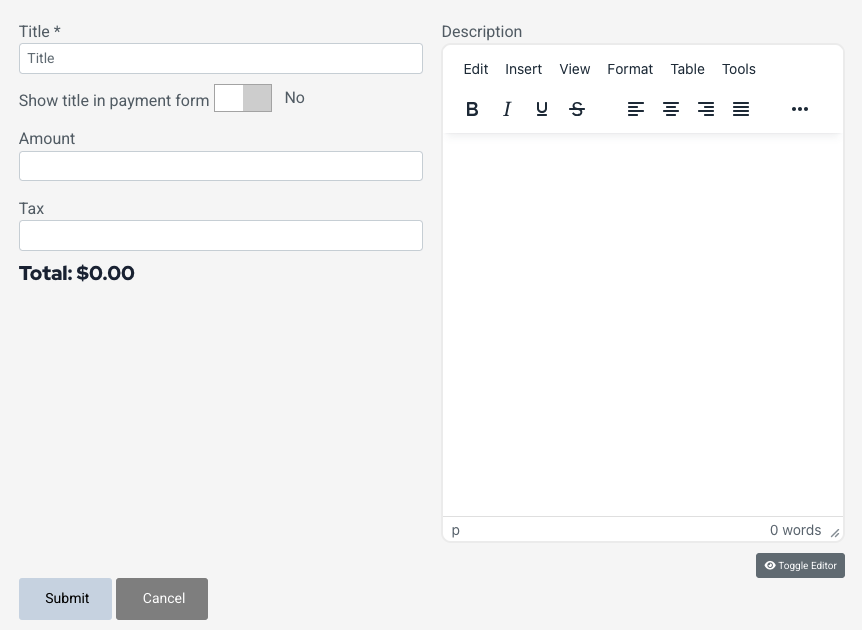
-
To get URL click the blue Share Link text then a pop up will display..

- Finally click Copy to copy the link to your clipboard. You can paste where needed. Click to OK to
finish.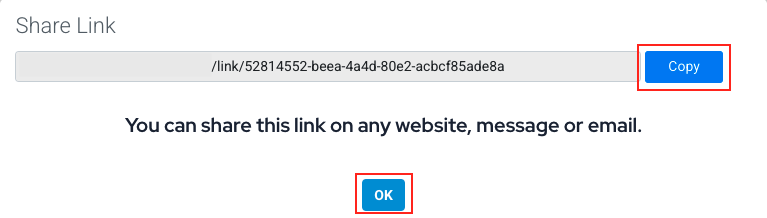
- To Edit an existing Payment Link click the name. To Delete click the Trash Bin icon.

-
Click My Profile in main menu, or scroll down to Account Management.
-
Click Payment Links.
-
Click Add.
-
Enter the payment link Title below you have the option to display the title in the link. Next enter Amount, Tax (if any), and Description (if any, any information entered will display on the payment screen). Once done click Submit.
Note: If you enter 0.00 as the amount the customer will be allowed to enter the payment amount. If you enter an actual amount the customer will not be able to edit the amount. -
To get URL click the blue Share Link text then a pop up will display..
- Finally click Copy to copy the link to your clipboard. You can paste where needed. Click to OK to
finish. - To Edit an existing Payment Link click the name. To Delete click the Trash Bin icon.
-
Click My Profile in main menu, or scroll down to Account Management.
-
Click Subscriptions under Financial Management.
-
Next click Add button to proceed.
Notes: Requires a customer added first to use feature. -
In the Subscription view add Title of service, Amount, Start Date, Select Customer (Name and Email will
be filled automatically), Description (optional). - Select the Billing Period.
- Add Trial Period (payment will be due after time frame).
- Add Number of Payments
- Add Setup Fee (optional)
Note: This fee is use for an initial payment if different than the subscription amount. - Click Submit after entering information needed.
Note: An invoice will be sent via email with payment request and the subscription will be
added to Recurring Payments to process.
-
Click Process Payment on main menu.
-
Enter Amount (ex. $125.00), Invoice Number (optional), Customer Name, Cardholder Name
(if different than Customer Name) mail and Description (optional) then click Process to proceed
with Credit/Debit Card payment. -
Next, Card Number, Expiration Date,CCV, and Postal Code. Check boxes and click Process to take
payment.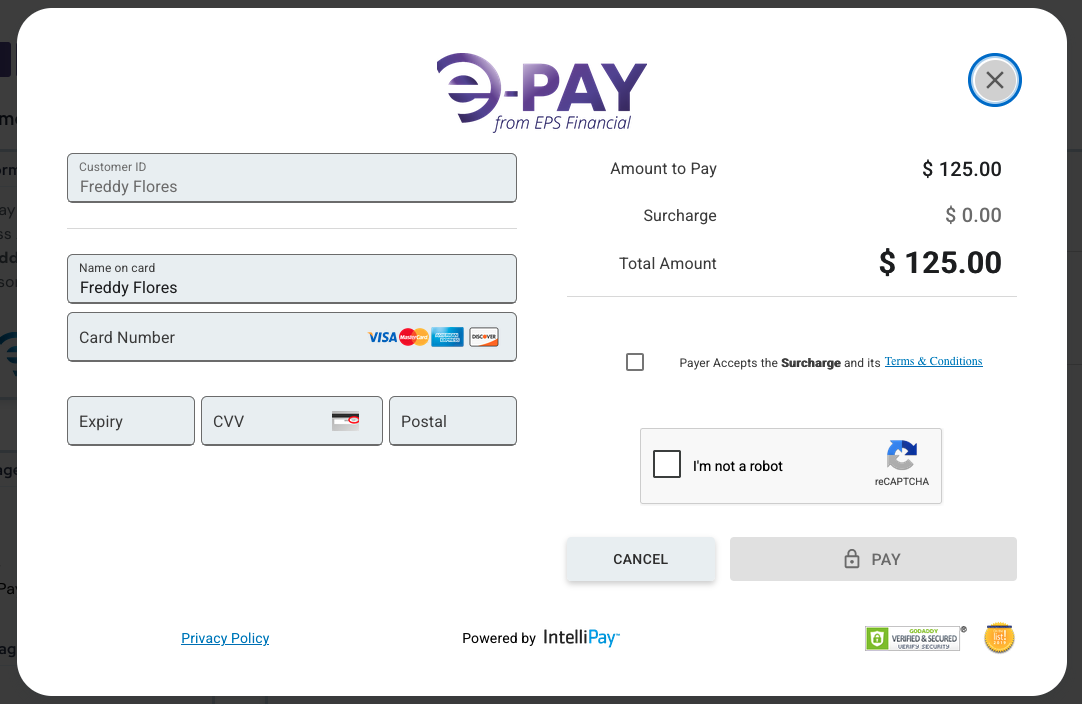
- On payment a receipt will be sent automatically to the customer's email entered, and a screen
with receipt view will display to Download a copy if needed. Else click Circle with X to close.
Note: A copy or Receipt can be found under side menu under Account Management. View Receipt
link document for more information.
-
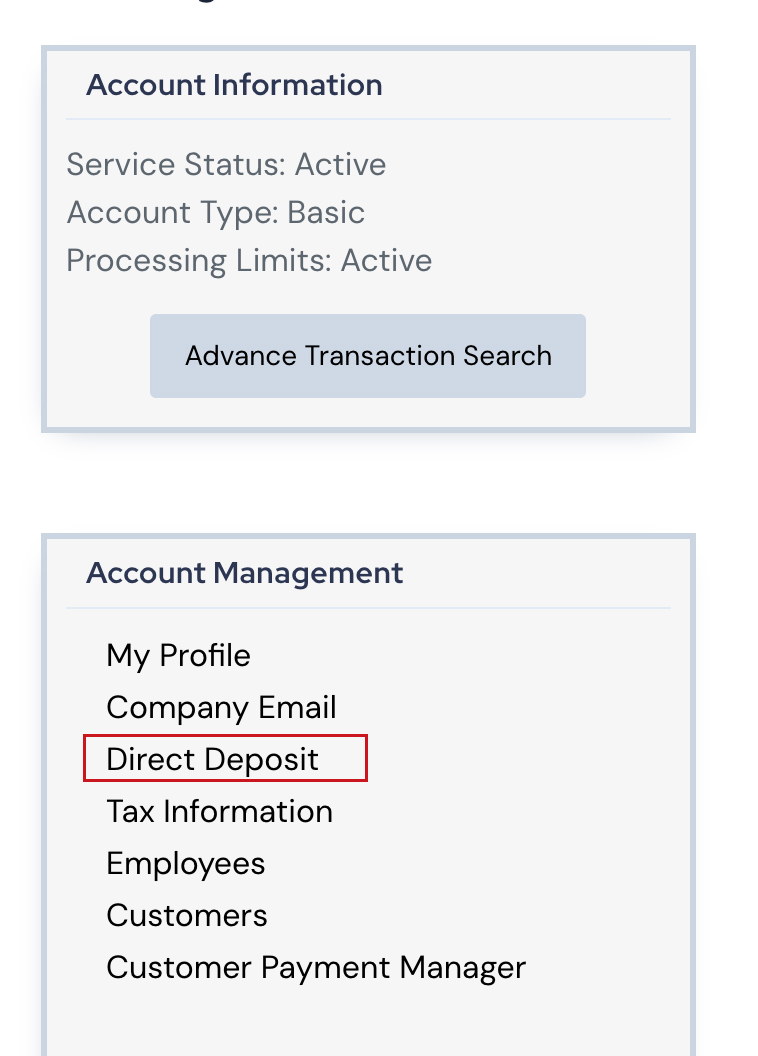
Click My Profile in main menu, or scroll down to Account Management.
-
Click Direct Deposit.
-
Select Bank Account type and enter the Routing Number and Bank Account Number, then click Update to finish.